Prologic FlyFF
- 1 · Download the bot
Get the latest version from the download page.
- 2 · Extract the archive
Unzip it anywhere, e.g. your Desktop.
- 3 · Add your license
If you have one, place the
.licfile in the bot folder, next toSEKAWA.exe. - 4 · Run SEKAWA.exe
- 5 · Configure the FlyFF client
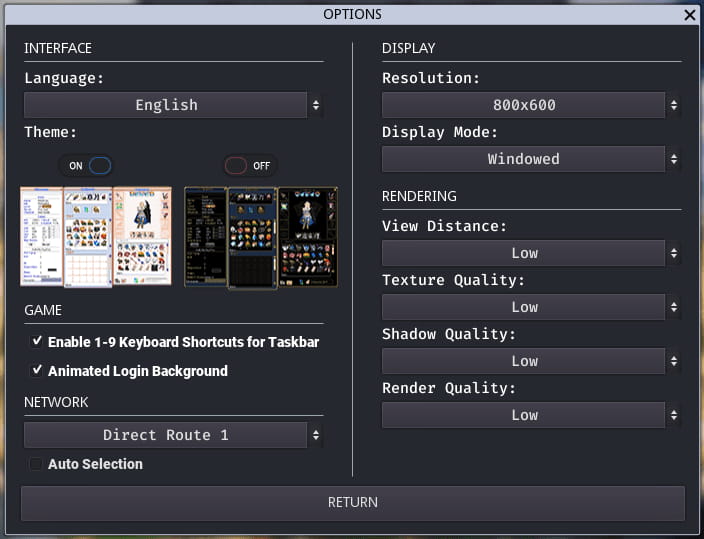
Launch FlyFF and set: 800×600, Windowed, English, Light theme.
- 6 · Prepare the awake
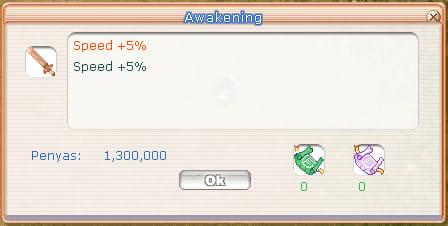
Open the awake tab, place your item, and run at least 1 awake manually. The item must already have an awake to start.
- 7 · Load penya
Fill the inventory with the maximum penya before starting. The bot uses perin automatically after a few minutes.
- 8 · Place your perins
Put perins in the last slot of the shortcut bar, just before the F1–F9 area.

- 9 · Set up the SEKAWA window
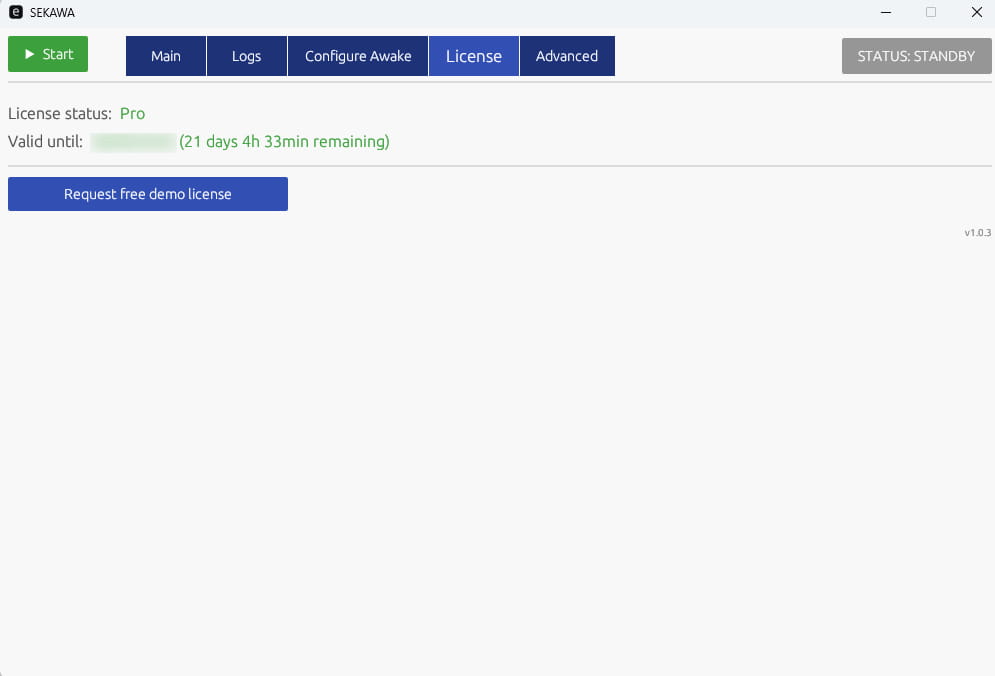
License tab — check your license status. No license? Request a free demo.
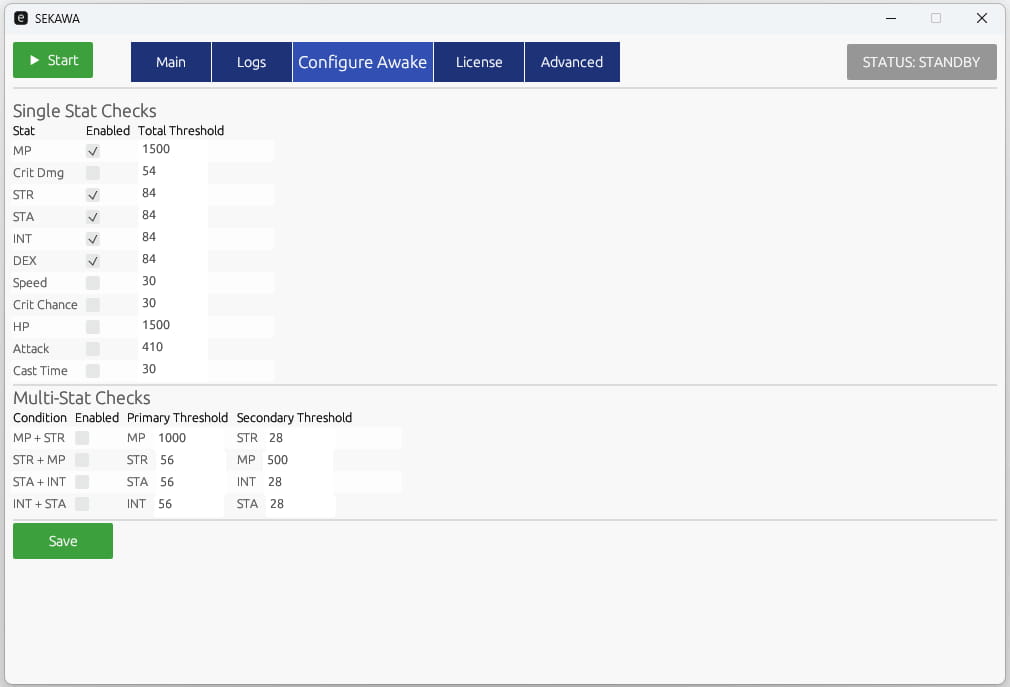
Awake tab — set the minimum value in Total threshold, tick Enable, then click Save.
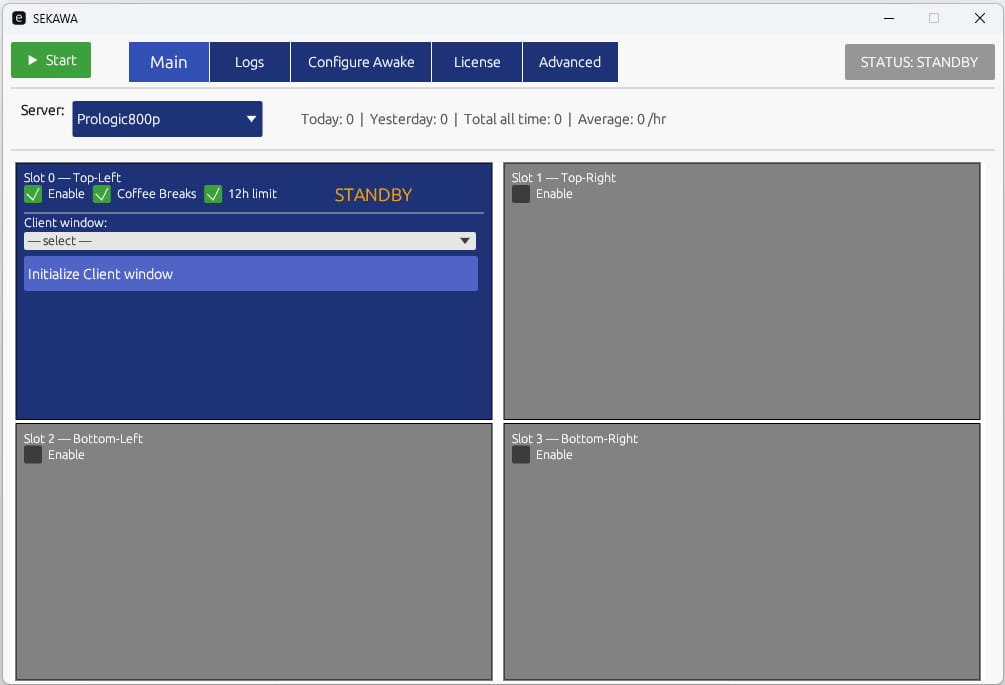
Main tab — enable a Slot (1 slot for Demo / Lite, up to 4 for Pro) and select the FlyFF client.
- 10 · Start
Click Start when ready — awakes begin after 3 seconds. Press ESC to stop.
Options
- Coffee BreaksTakes random short breaks for more human-like behavior.
- 12h limitStops the bot after 12 hours of awaking. Adjustable in the
config_mainfile. - Phone alertsConfigure
ntfy.shin theconfig_mainfile for real-time alerts on your phone. Free — see the ntfy.sh docs to set it up.
General recommendations to reduce risks of getting banned
- Limit to around 10-12 hours of awake per day per account.
- For 24/7 use: rotate multiple accounts, VPNs and VMs.
No method is ban-proof — use the bot at your own risk.